Season registrations, without late nights in SA.
SAbio fetches the registration forms, medical certificates and ID documents from the club's Drive, reads them all, fills in the registrations in SA, attaches the documents, checks the batch and gets it ready to submit to the federation. It saves hours of repetitive work every season.
SAbio types it into SA for you
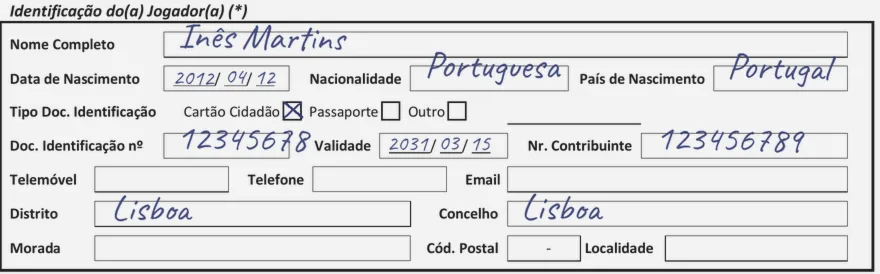
The slow part was copying each document into SA, field by field. Now SAbio reads the registration forms, medical certificates and ID documents, from Drive or attached in the panel, scanned or photographed, and types everything into SA.
-
Name, date of birth, tax number (NIF), ID number and expiry: read from the document and typed into SA.
-
Recognises who is already in SA by licence number or NIF.
-
When the document and SA disagree, it shows the differences and the club chooses.
-
PDF, JPG or PNG, up to 10 MB each.
A whole team in one batch
Ask for a team's registrations in one sentence. SAbio gathers each player's documents, from Drive or attached.
Builds the batch
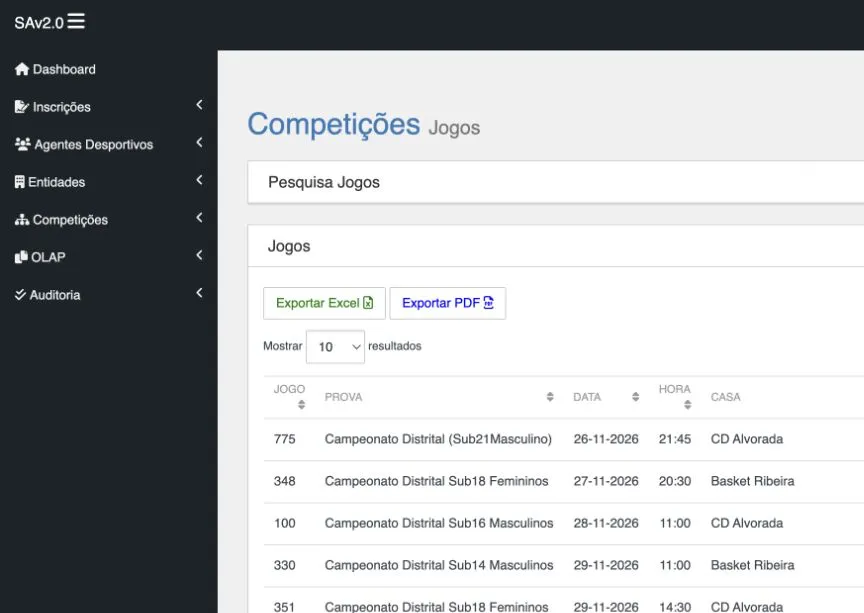
Sorts the documents by player, tells first registrations apart from renewals and age-group moves, and creates the registrations.
Says what's missing
A missing medical certificate or an empty required field shows up before you submit.
Automatic stamping
Add the club stamp once, in Settings. From then on, every Modelo 1 and Modelo 4 that SAbio files in SA, or prepares for download, carries the stamp in its slot, if the slot is empty.
-
One stamp per club, the same for everyone who signs in with the club account.
-
It changes only when someone replaces or deletes it in Settings.
Documents already in Drive? SAbio fetches them.
Connect the club's Google account in Settings and choose the players' spreadsheet and the documents folder. SAbio organises everything by player, on its own, and uses the documents straight from Drive.
-
No downloading or attaching files.
-
Works with the sheet and folders the club already uses, as they are.
-
Updates every day and only looks at the current season.
And the rest of your SA tasks, in one request
Ask in the panel, beside SA, as you would ask a colleague. What took several SA screens is ready from one request.
- Generate the game sheet for the Under-14s' next game.
- Prepare Tomás's Modelo 1 for signing.
- Which documents are the Under-16s missing?
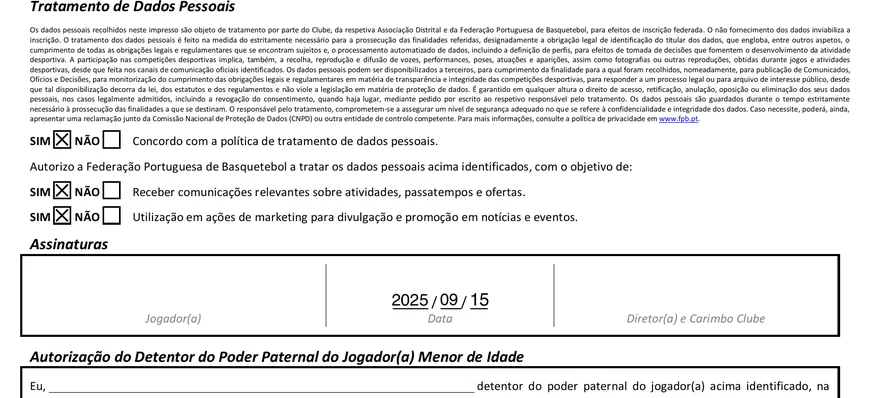
- Which games do we have this weekend?
When SAbio doesn't find something, that doesn't mean it doesn't exist: SA has duplicated or wrong records. Check anything important in SA.
Getting started
You need
-
Google Chrome on a computer.
-
A club account in SA.
Then
- Install SAbio from the Chrome Web Store.
- Log in to SA with the club account, in the same Chrome.
- Click the SAbio icon in Chrome's toolbar to open the side panel.
- Optional: in Settings, connect the club's Google Drive and add the stamp.
Frequently asked questions
How much does it cost?
Nothing, while in testing.
Is SAbio made by the FPB?
No. It's a Passo Zero product and not an FPB service. It works with SA through your club's session.
Which accounts can use SAbio?
Only SA club accounts. Any club can use it.
Does SAbio keep my SA password?
No. SAbio never sees or stores your password. It uses the SA session you already have open in Chrome. When you log out of SA, SAbio can't work until you log back in.
Does SAbio change SA without asking me?
No. Every change shows up first as a proposal, with what will change, and happens only when you click Confirm. Deleting or submitting a batch to the federation asks for a second confirmation. If you want, you can always allow some kinds of change; they still show up in the chat.
Can SAbio get things wrong?
Yes. Answers and document reading are done by an AI model. Check anything important in SA.
Do I have to connect Google Drive?
No. You can attach the documents in the panel instead. Drive is optional, and you connect or disconnect it in Settings.
Are conversations saved?
Yes, for the club: everyone who signs in to SA with the club account sees the conversations and can continue them. A conversation continues in one place at a time, and is deleted 30 days after its last message, or earlier if you delete it. Files and changes waiting for confirmation aren't kept.
Where does the data go?
What is sent, to whom, where and for how long is set out in the terms and privacy policy.